
Note: This page is for version 1.3 of the driver, support for
1.1 and 1.2 are also available.
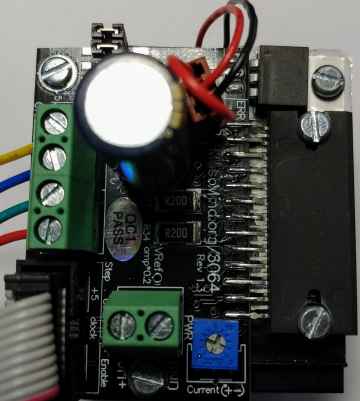
The THB6064AH driver supports BiPolar (4, 6 or 8 wire) motors
up to 4 amps/phase at 50 volts. CONTINUOUS! It is based on
the new THB6064AH (
Datasheet ) chip
(also known as the Toshiba
TB6564AHQ^)
which is a design improvment over the TB6560, adding support for better
microstepping, lower resonance, and protection for power on
sequence^.


* These are electronics KITs, you need to solder them together.
Features
|
The Honest Truth: It is a "chopper" type driver, so it doesn't require a terribly large heatsink, but you can expect to hear a little bit of motor "hiss" or "squeal" during operation (see the video below), and in high power systems, the motors may require more cooling than the driver. There are other drivers for different needs:
| Driver | Maximums |
Motors | Pros | Cons | ||
| Amps | Volts | Power | ||||
| Linistepper | 1 or 2, 3 max | 36 | <75 | 5, 6 or 8 wire Unipolar |
Ultra smooth, quiet, low noise, low mid band resonance, motor stays cool, cheap to repair | Limited power, driver heat |
| SLAm | 2 to 3 | 36 | 108 | 5, 6 or 8 wire Unipolar |
Stable, easy to build, small heatsink, tough | Resonance, motor heat/noise |
| THB6064 | up to 4 | 50 | 200 | 4, 6 or 8 wire Bipolar | Powerful, most motors (4, 6 or 8 wires), small heatsink, very tough | Some resonance, motor heat/noise |
| GeckoDrive.com (listed for compairison only) |
3.5-7 | 50-80 | 175-560 | Bipolar | Freaking magic | Cost $80-$166 per axis. |
Providing a range of drivers is in keeping with our "more is NOT necessarily better" approach. The same is true of motors: Unipolar motors cost less, provide less torque at low speeds, but maintain torque as speed increases. Bipolar motors, only when connected for parallel drive, provide better starting torque, but may not turn as fast and will generally be more costly. Pick the right motor for the job, based on your actual needs.
Check out working machines built by our customers, like Alan Redd who says: "I received the kits, built them, and installed them on my lathe today. I was able to follow the instructions and get both drivers put together right on the first try. I have been using a G540, and your drivers seem to have as much power and only very slightly more noise from the steppers. I am still fiddling with the power level and the decay settings, but am very happy with the performance at the current setup."
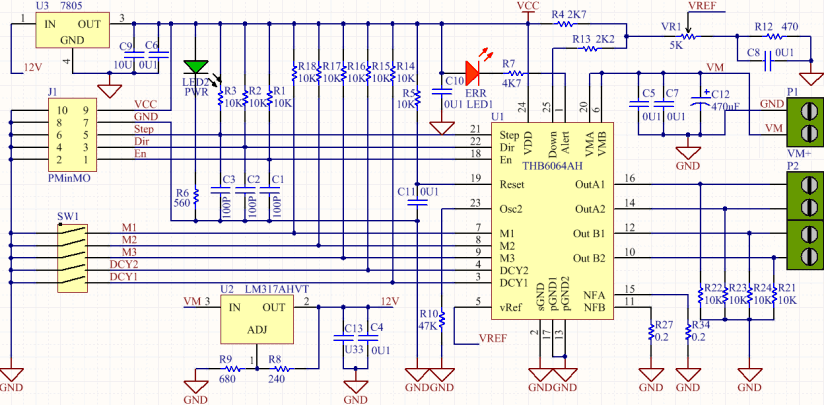
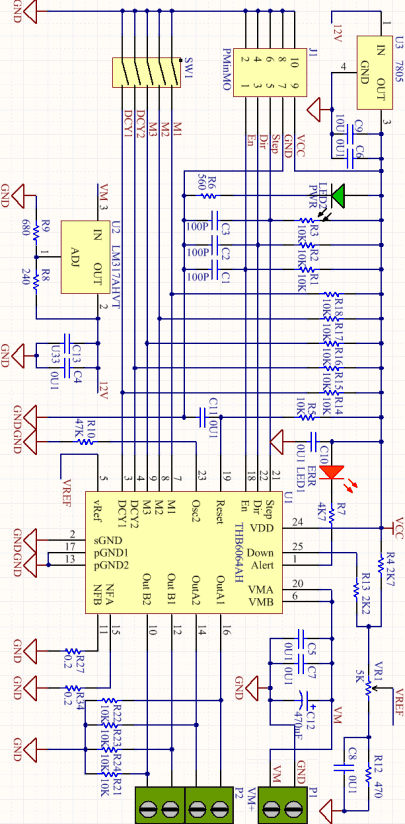
Please do NOT use the schematic to assemble the kit. Please follow the written instructions below . If you are not an expert at soldering, PLEASE read through our soldering class first.
Version 1.3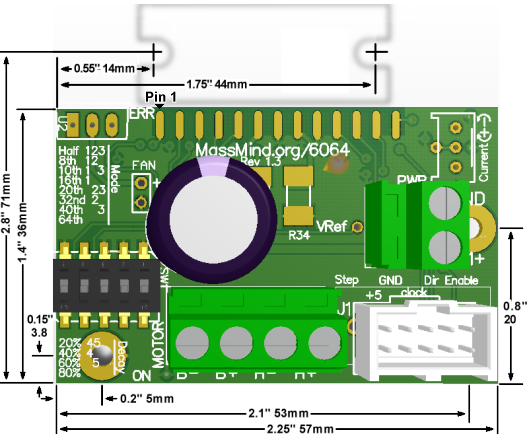 |
PMinMO connector: 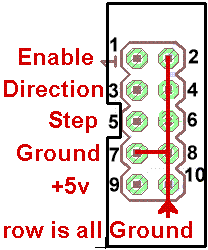 |
| Kit |
Part |
Qty |
Description |
|
|
|||
| PCB | 1 | The printed circuit board only. Double sided, plated thru holes, professionally made. | |
|
|
|||
| U1 | 1 | THB6460AH aka TB6564 Bipolar 4.5A, 48V Datasheet (pdf) | |
|
Including the Chip and PCB listed above |
|||
| R27,34 | 2 | 0.2 Ohm SMD 2W WSR2 (critical) | |
| VR1 | 1 | Potentiometer 5K Trim | |
| C12 | 1 | Electrolytic 470-560µ 63V Low ESR High ripple | |
| J1 | 1 | 0.1" 2x5 Shrouded PMinMO (option) w/Step, Dir, En , GND and +5volt power | |
| or | 1 | 0.2" Terminal Block (option) w/Step, Dir, En and GND (Option: Not supplied) | |
| PWR | 1 | 0.2" Terminal Block w/GND, VM+ | |
| MOTOR | 2 | 0.2" Terminal Block w/A1, A2, B1, B2 | |
|
|
|||
 On the rev 1.3 of the PCB, you can provide the +5 logic power regulator from the motor power supply by adding a powere regulator. This will not fry the THB6064AH they way it will fry the TB6560, because it protects against latch up on start. See the Errata below. |
|||
| U2 | 1 | LM317HVT Voltage Regulator | |
Terminal Block Control Signals
The Version 1.3PCB adds two extra holes on the
PMinMO connector at lower right so that terminal
blocks can (optionally) be used instead of a 2x5 header. In that case, note
that the terminals don't carry logic power. And so logic power must be supplied
via one of the other options listed below.
1. Long lead / Pin 1 in the square hole. Pin one or the positive lead is always marked on our PCBs with a square hole. On components where pin one isn't marked on the component package, the longer lead is always positive, and we make that pad square on the PCB.
2. Don't solder the component in right next to the PCB; leave a little bit (1/4 inch, 1 mm) of lead.
a. This helps prevent the component from overheating when you solder, and during operation. It also gives you some lead to cut if you need to repair the board or if you get the component in the wrong hole. Trying to desolder the leads without cutting them is much more likely to damage the PCB.
b. To keep the components off the PCB, insert the leads so that the component is about a quarter inch up, then bend the leads together at that point, crossing them over each other at about 45 degrees. You could also bend them out, but then they would be in the way of the soldering iron, which is almost always coming in from the outer edge of the board. When you turn the PCBover to solder on the back side, the component will fall down to the point where the lead is bent, providing the correct spacing on the component side.
c. Solder one lead, stop and check the positioning and that it is the right component in the right place the right way around... then solder the other lead.
3. Work from the inside toward the edge, low components to high components. It's best to solder down any SMT components first, since they are certainly the lowest, then work up and out. Solder a few through hole components in a line if you can, then clip leads and do the next line.
4. It's important to clip all leads as short as possible to prevent shorts to the heatsink.
Keep the leads... they become the jumper for the power source and can be used for the test points.
5. Good soldering is adequite heat to both pin and pad for a few seconds
at a time, repeated until the solder flows completely. Keep your iron
hot, clean, and tinned. Make solid contact with both pin and pad, but never
stay on more than a few seconds. The count of 5 should be enough. If the
solder didn't flow around all of the pin and pad in that time, get off, let
it cool, and try again. See our soldering class:
http://goo.gl/HuCC1R MassMind Soldering
201
 Passive Components
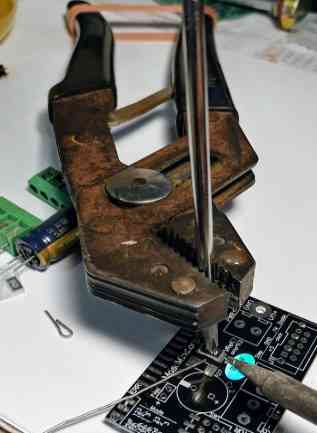
1. [ ] Surface mount Resistors. There are only two surface mount devices on this board, unless you count the driver chip as SMT because of the way it's being mounted. The components are large compared to most SMD and they really are easy to solder. The only trick is that there are no holes to hold the components in place by the leads, so you need some way to keep them in place while you solder. Almost anything that has 3 or 4 corners and won't melt can be used. A metal box, a heat sink, an aluminum extrusion, … anything. Probably the best is made from vice grips and a screw driver tip. If you don't have vice grips, wrap a rubber band around the far end of the handle of a pair of pliers. Or just tape one side of the part down with clear tape!
Once the part is held down in position, touch the pad, next to the end of the part, solder, flow, off. Solder one side of each part, check position, solder the other side.
3. [ ] Variable Resistor: This is the drive current adjustment. It can be installed either way but being able to get in there to turn it is the trick. Make sure you will be able to get to it after installing the other components. Take care not to melt the case by letting each lead cool a bit after soldering. If you like, you can even bend the leads on the variable resistor and install it flat agasint the PCB, with the shaft up.
4. [ ] Logic power options: There are 3 ways to get logic power, please select one:
External logic power via the PMinMO header: Nothing needs to be done to the PCB, just supply 5 volts via pin 9 (with ground on pin 7 or 2,4,6,8,10). The PMinMO header can be connected to the 4Axis board, or directly to a PC parallel port cable. You can provide power on that PMinMO header from the 4 Axis board, a USB port, or your own 5+ regulated power source. On the version 1.3 board, with VM greater than 35 volts, this is the necessary option.
Logic power without fan via VM+ < 35 volts: The onboard 5 volt regulator can supply the small logic current required from VM+ up to about 35 volts^. This is NOT recommended for the full possible 50 volts the drive can accept; in that case, supply external logic power as above. In this configuration the fan connector will be VM+ so the fan has to be able to accept the drive voltage or have a separate supply. For this option, clip off part of a lead from the large capacitor to short the two pins of U2 furthest from the edge of the board (nearest the "ERR" silkscreen) as shown here: TODO: Picture. Keep in mind, you will be applying >9 volts to VM+ when testing logic power below.
FAN Power regulator (Option): To use the FAN connector on the PCB, you need to install the large TO-220 LM317HVT or AHVT. This can manage the up to 50 volt motor supply and produce 12 volts at a high enough amperage to run most CPU fans. ERRATTA: There is an error in the values populated on the version 1.3 board: R8 is 240 ohm and R9 is 680. This results in the output of the regulator being 5 volts, which will not provide enough headroom for the already polulated LM7805 regulator to generate logic power. R9 must be changed to 2K2 ohms.
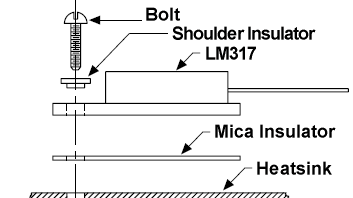 If you do install the onboard
logic power regulator option, the LM317 goes in U2, with the tab towards
the outside of the PCB. The tab must be electrically isolated from ground,
so a mica insulator must be installed between the tab and the heatsink, and
a shoulder washer should be used to keep the mounting bolt from touching
the hole in the tab. Keep in mind, you will be applying >16 volts to VM+
when testing logic power below.
If you do install the onboard
logic power regulator option, the LM317 goes in U2, with the tab towards
the outside of the PCB. The tab must be electrically isolated from ground,
so a mica insulator must be installed between the tab and the heatsink, and
a shoulder washer should be used to keep the mounting bolt from touching
the hole in the tab. Keep in mind, you will be applying >16 volts to VM+
when testing logic power below.
5. [ ] VRef Test Point: Form loops from a couple clipped leads and push both ends into the hole for the VREF test point just behind the motor power terminals.
6. [ ] Jumpers: When you solder on the 2x5 header for the options jumpers and the shrouded 2x5 PMinMO header, it's a good idea to bounce around in the pin order rather than just going down the line. It keeps the plastic from getting soft and perhaps not holding the pins straight. If you have the mating female connector handy, plug it in while soldering. Note the notch in the shrouded header is away from the edge of the board. Option 1 is away from the edge, next to the power cap. Option 5 is near the edge of the PCB.
7. [ ]
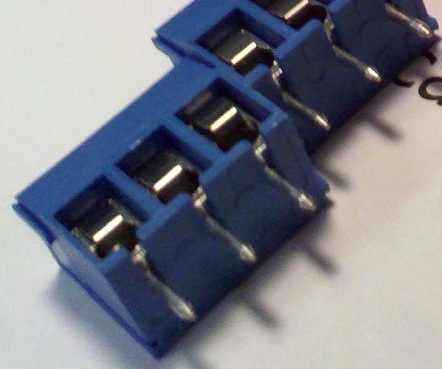 Terminal Blocks: Slide two of the three
terminal blocks together so that the rail and groove interlock.
Terminal Blocks: Slide two of the three
terminal blocks together so that the rail and groove interlock.
4. [ ] Capacitor: The large electrolytic cap goes in with the long lead in the square hole, and the stripe side towards the round hole. It can be installed all the way down on the PCB for physical stability. And it's probably best to set it aside and come back to it after you have done all the other components. Save the clipped off extra leads for use as jumpers in the logic power section.
Assembly time to this point is about 20 minutes.
11. [ ] At this point, without the chip installed, do a visual inspection,
preferably with a magnifying glass. If you want to be extra careful, you
can check the resistances to ground at the pads where the main chip will
be soldered on. Note: This table assume no option jumpers are in place.
If they are, the DCY# and M# pins will be <0.2 instead of 12K. Pin 1 is
on the left looking from the top with the chip away from you.
TOP:
Pin	Signal	Pad*	Normal
1	ALERT	1	OO
3 	DCY1	2	~15K or <0.5
5 	VREF	3	470-5K5
7 	M1	4	~15K or <0.5
9 	M3	5	~15K or <0.5
11	NFB	6	<0.5
13	PGNDB	7	<0.2
15	NFA	8	<0.5
17	PGNDA	9	<0.2
19	RESET	10	~15K
21	STEP	11	~15K
23	OSC2	12	47K
25	DOWN	13	6K2
VREF = ~470 to ~4K as the trim pot is turned |
BOTTOM:
Pin	Signal	Pad*	Normal
2GND	SGND	1	<0.2
4 	DCY2	2	~15K or <0.5
6 	VMB	3	~3M5
8 	M2	4	~12K or <0.5
10	Out2B	5	10K
12	Out1B	6	10K
14	Out2A	7	10K
16	Out1A	8	10K
18	EN	9	~15K
20	VMA	10	~3M5
22	DIR	11	~15K
24	VDD	12	>5K
|
If using PMinMO header, apply 5V logic power at pin 9. Otherwise, apply motor power to VM+. Now the 5V logic power system can be checked, the +5v led should be on and the Vref can be measured and adjusted to a low value: 0.4-0.5V. Power off and prepare for finally assembly.
12. [ ] The big THB6064AH chip: Since this product has a MOS structure, it is sensitive to electrostatic discharge. These ICs are highly sensitive to electrostatic discharge. When handling them, please be careful of electrostatic discharge, temperature and humidity conditions. Wear a grounding strap when touching the chip and work on an anti-static surface.
The IC fin is electrically connected to the rear of the chip. If current flows to the fin, the IC will malfunction. If there is any possibility of a voltage being generated between the IC GND and the fin, either ground the fin or insulate it. We recommend that you directly connect the IC to the heatsink, and ground the heatsink.
If consistent mounting hole locations are important to you, use a drilled heatsink or template plate for this last step. Drill and tap for M3 or #4-40
Mount the chip and PCB using 3 #4-40 or M3 screws. Temporarily mount the chip to the heatsink first. On a large heatsink, you should also mount the PCB with a spacer to raise it up a bit so it won't short out underneath. Spacer height can be about 0.1 inch or 3mm. You can use an M3 or #4-40 nut, a stack of washers, or cut off a bit of tubing like an old bic pen barrel. If the heatsink is smaller than the PCB, like our little CPU coolers, just mount the chip in the center of the heatsink and secure the PCB to the cabinet next to the heatsink.
Slide the PCB between the chip's pins, align it carefully, and screw it down. The wide point on the outer pins should be just at the edge of the PCB. Any farther in, and the pins will start to spread apart and not lie flat on the pads. Make sure all the pins are flat on the pads so the solder will flow nicely over the length of the pin and form a strong connection. Bend them carefully if needed. Solder one pin by placing the tip of the iron on the pad near the pin and let the solder flow around and under the pad. Check placement, alignment, and orientation and then solder down the rest of the pins. It's a good idea to bounce around and pause once in awhile to keep the heat from building up in the chip.
Now take the chip and the PCB off the heatsink, turn them over and solder the pins on the back side. Check the following resistances from the actual pin of the chip (not the PCB pad) and these test points:
Finally, reassemble with a bit of heatsink paste under the chip. That paste makes a huge difference in high temperature operation.
 Version 1.3 (with optional fan regulator) |
13. [ ] Apply only the +5 volt power again, verify the power LED lights and nothing gets hot.
14. [ ] Power off, connect motor power (but don't turn it on!) and the motor. For help with sorting out the motor leads, see: Stepper Motor wiring
DECAY J J Mode |
MODE |
15. [ ] Set decay and mode by adding or removing jumpers. You might start with only 1 and 5 jumpered: 60% decay and 16th. Option 1 is away from the edge, next to the power cap. Option 5 is near the edge of the PCB. microstepping.
16. [ ] Verify the current control potentiometer is set all the way to the lowest setting. Apply logic power first, then motor power. The motor should lock, but not turn. Make sure the drive chip and motor are not heating. Carefully adjust the current setting to 30% of the motors rated capacity. Why only 30%? Because when the motor is not turning, the driver is in idle and as soon as it gets a step pulse, it's going to increase the drive power automatically. Please do NOT measure the current via the +VM or positive motor supply lead: Because this is a chopper driver, the current measured at the +VM line is much lower than the actual motor; as much as a quarter to a fifth the actual current; to set current limit, you must measure VRef voltage.
To calculate the correct VRef voltage (at speed): Io = Vref * 1/3 *
1/Rs
Since Rs = 0.20 Ohms then Io = Vref * 1.667 (at speed)
For example, when Vref = 2.4 volts, Io = 4 amps (max) and when
Vref = 0.5 volts, Io = < 1 amp (minimum).
When at rest, the actual Vref for Io = 4 amps (max) will be 30% of 2.4 volts or 0.72 volts. So to set for maximum amperage, while the motors are at rest, adjust Vref to 0.72 volts. For Io = 1 amps (min), when at rest, Vref should be adjusted to 30% of 0.5 volts or 0.15 volts.
Start with the current you want in amps. Divide that by 1.667 to get the correct voltage for Vref when running. Then divide that by 3.333 to get the correct voltage for Vref when resting. Set Vref to that voltage when powered but resting (not stepping), by following these steps:
NORMAL VOLTAGES WITH MOTOR AND LOGIC / MOTOR POWER
Pin	Signal	Normal
24	VDD	5V (4.6 to 5.5)
6 / 20	VMB/VMA	12V to 50V
5	VREF 	0.2V to 2.4V
23	OSC	1.2V
19 	RESET	4.6V
17. [ ] Now connect the step and direction signals
and spin the motor. These should be < 0.8V when low and > 2.0V when
high. The Vref reading should increase to your desired amperage setting divided
by 1.667 while the motor is in motion, and drop back down when you stop
it. Let it work for at least 10 minutes to verify that nothing is
overheating. Power off and try different decay settings for smoother operation.
Note: En (Enable) needs to be high. If you are building the RAMPs adapter cable, please do NOT bridge the two pads on the bottom of the adapter PCB. Bridging these pads with solder will cause the enable signal from the RAMPs board to be fed into the driver. However, the polarity of that signal for our driver is the opposite of that for the standard Pololu boards. As a result, the motors will lock when not moving, and release, failing to move, when the RAMPs system tries to move them. The enable signal is not required on the THB6064AH driver because it is enabled by default, and automatically goes into a low power hold when not in motion. If you do wish to make use of the enable line, you will need to change the polarity in the firmware. E.g. For Marlin, change the X, Y, Z or E _ENABLE_ON from 0 to 1 in the Configuration.h file
See also:
Questions:
Hi, I'm very confused about how to set the proper current limit. It seems like the Vref pin on the chip should be set by external circuitry to provide a comparison voltage for the chip. So I would expect that pin to be a high impedance input and that the voltage at the pin, which is set with the voltage divider formed with the pot in your circuit, would stay constant. However the voltage at the Vref pin about doubles when I am stepping the motor vs when the motor is stopped. Why is this? I would certainly expect the voltage across the sense resistors to change when stepping, but not Vref. Or is my board malfunctioning?James Newton of MassMind replies: The reference is pulled higher when stepping and allowed to drop when motion stops to avoid overtemp when not moving.+
Hello!
I need to connect the motor Nema34 to Ramps 1.4.
Network recommend to use your project.
Today I need 2 driver.
I need driver in assembled condition. Still need adapters cable Pololu.
Tell me, is it enough to work, or will need something. I am ready to pay today. What are the dates of dispatch and delivery to Russia?
Regards, Vlad
James Newton of MassMind replies: Hi Vlad, as per our email conversations, you would be much better off using a Gecko Drive and making a custom cable.+
I'm building a 24x30" wood router. It will have plastic linear bearings (8020 style), 5 start 10tpi acme screws. Motor torque requirements come out below 100 oz-in for several methods, including the one here. Why do people use 300 oz-in motors on machines this size? I realize torque drops with speed.
I like the looks of your 4A driver.
Steve
James Newton of MassMind replies: Because pull out (or detent) torque and hold in (holding) torque are different. If you need something held at 100 oz-in, then a 100 oz-in motor is fine. If you need something to turn at 100 oz-in, then you probably need at least a 300 oz-in motor. See: Torque for more+
James, i was looking at the BoB and I see you do not use optocoupler input/outputs which seems normal on others I have looked at, is there a reason for this?
James Newton of MassMind replies: It's a risk / cost assesment. In all the years I've been doing this, I've seen exactly ONE case of a driver apparently taking out it's controller. And that was on Andreys massive cement 3D house printer when he was pushing the drivers past spec. On the other hand, search CNCZone for problems caused by optocouplers. IMHO, it just isn't worth it. Especially since older PC's with parallel ports are now so inexpensive. If you want a version with opto's contact the mfgr Luc.+
I am waiting on receiving your 3 axis kit,
I will be using it with Linuxcnc, do you have recommendations for step & hold timings etc.
Reading the datasheet is not very clear on what to set them to
James Newton of MassMind replies: Minimum 2.3uS step and your guess is as good as mine on the direction line; it's not specified in the datasheet at all. I haven't seen any issues with reasonable times of a few uS.+
Why is that 4 10k resistor pulling the motors output to ground, not better a diode or nothing connected? Why those 10k and 100nf parts in the reset pin, why not link to +5V if the device claims to be safer than TB6065? Thank you!
James Newton of MassMind replies: The diodes are built in, the resistors reduce the size of the diodes required. The parts on the reset pin keep the driver from running until after the supply voltages have stabilized (some spikes on power up are pretty common in high power supplies).+
good day, your 6064 Stepper Motor Driver / breakout / cables 3 AXIS FULL KIT! $ 120.90 is already assembled and welded? already has the sink as in the picture?
there is already an adapter cable for ramps 1.4?
James Newton of MassMind replies: No. It is a kit. You must solder it together.+
Hi james, forgive my ignorant question of electronic, but is it possible, with ramps 1.4 and marlin, move 3 axis, and then 3 stepper motors of my 3d printer, with the kit "3 AXIS FULL KIT"? ?If no, what else (or less) I need? Thank you in advance.
Alessandro
James Newton of MassMind replies: No worries! The RAMPS board would replace the 4Axis board in that kit, so you only need 3 of the THB6064 driver kits, and you will need to make a cable to connect the RAMPS board to the drivers. I'll be happy to help you make the cable, showing which wires need to connect where. In the future, we hope to provide a ready made cable, but that is not available yet.+
jtrantow says (speaking about his experience with a cheap THB6064AH knock off from China that would only turn one direction if at all) "Notice massmind design uses a 10k pullup in conjunction with the TB6564AH internal pulldown so it won't have this problem. This is an easy fix if you don't mind working with the three surface mount resistors, but I wish I had been aware of the massmind kit. It would have been quicker to build up the kit than debug and repair this board." +
Comments:
| file: /Techref/io/stepper/THB6064/index.htm, 48KB, , updated: 2021/2/10 13:45, local time: 2025/10/17 08:10,
216.73.216.53,10-2-207-162:LOG IN
|
| ©2025 These pages are served without commercial sponsorship. (No popup ads, etc...).Bandwidth abuse increases hosting cost forcing sponsorship or shutdown. This server aggressively defends against automated copying for any reason including offline viewing, duplication, etc... Please respect this requirement and DO NOT RIP THIS SITE. Questions? <A HREF="http://www.massmind.org/Techref/io/stepper/THB6064/index.htm"> THB6064 MassMind Stepper Motor Driver Kit</A> |
| Did you find what you needed? |
Welcome to massmind.org! |
|
Ashley Roll has put together a really nice little unit here. Leave off the MAX232 and keep these handy for the few times you need true RS232! |
.